Warranties · 4 min read
Adding and Tracking Warranties
How do I keep track of my appliance warranties?
In Eelay, go to Warranties and choose Add Warranty. Upload the warranty document to fill in details for you, or enter them yourself. Each warranty shows whether it's active, expiring, expired, lifetime or only partly covered.
- Know what's covered before you pay for a repair
- Keep warranty documents with the warranty itself
- Clear status for partial and lifetime coverage
Step by step
Open Warranties
Select Warranties in the menu to see all your coverage in one list.
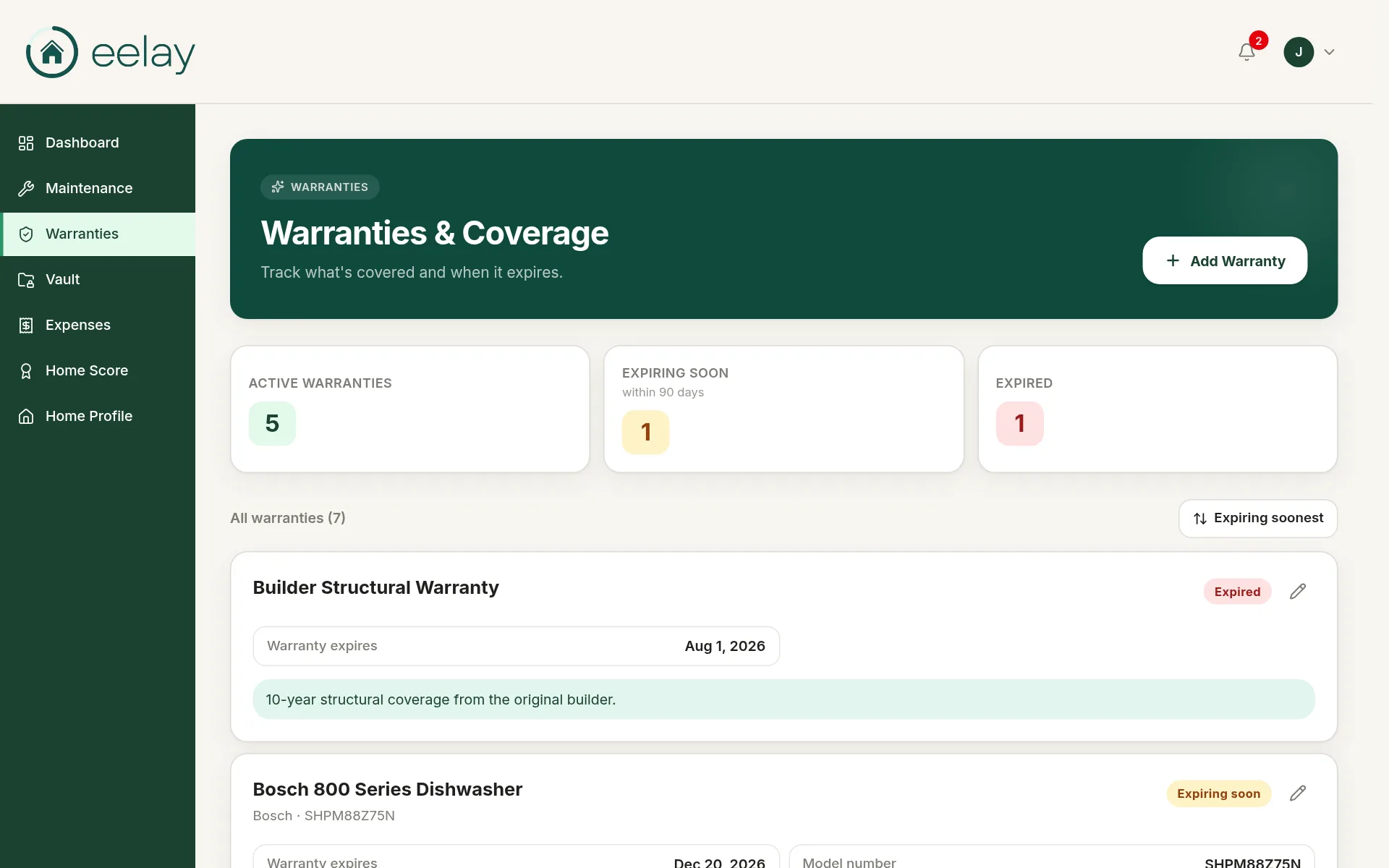
Tap the screenshot to see it full size. Add a warranty
Choose Add Warranty, then Scan or upload document or Enter manually. When you upload, Eelay fills in what it can find — review and correct anything before saving.
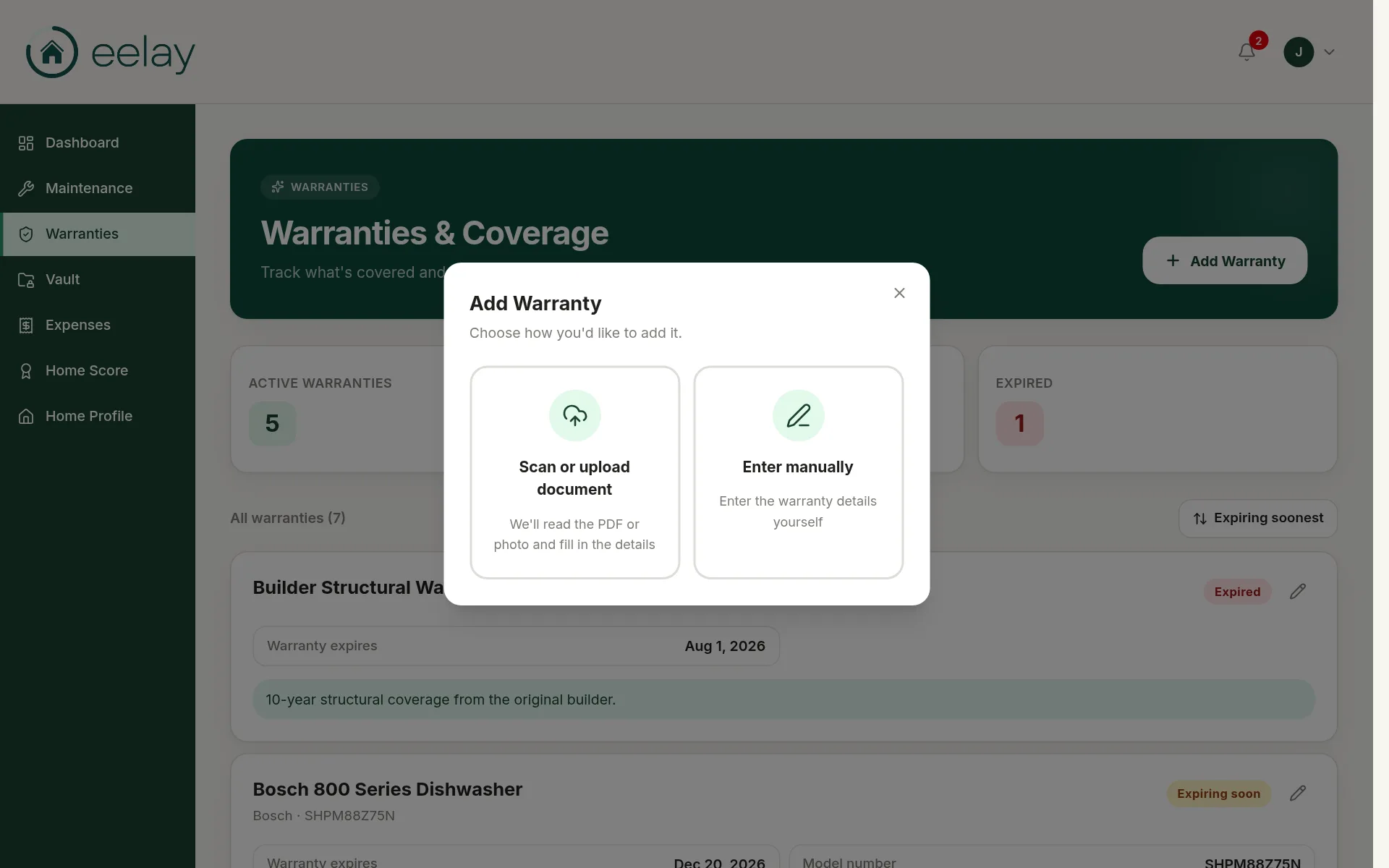
Tap the screenshot to see it full size. Tip: If one manual covers several models, pick the model you actually own.
Pick a category
Choose an appliance or system, or Structural, Exterior or Other for things like home or termite warranties.
Check coverage status
Each warranty shows a status. Partial Coverage means some parts have ended while others, like a lifetime motor, are still covered.
Common questions
- Where does the warranty document go?
- It's saved with the warranty and also appears in your Home Vault.
- What if my warranty has no end date?
- Choose Lifetime as the coverage length.